Step-by-Step Guide to Installing Docker on Windows
Learn How Docker Eases Containerization on Windows with a Simple Installation and WSL2 Integration

G
Senior Data and Architecture Engineer, I have built a career over 10 years of experience in Data Engineering, Cloud Computing, and Software Engineering. When I'm not coding or thinking about a thousand possibilities to solve a problem, you can find me organizing tech events, speaking at conferences, events, live streams, or contributing to open source projects on GitHub. :)
Download and Install Docker
To begin the Docker installation process on Windows:
- Visit the official Docker website and download Docker Desktop for your specific system architecture (AMD64 or ARM64).
- To find out, open Settings > System > About

- To find out, open Settings > System > About
- Run the installer and follow the setup process:
- Accept the license agreement.
- Select the WSL 2 backend option during installation.
- Restart your system if prompted.
Minimum Requirements:
- 64-bit processor (AMD64 or ARM64)
- At least 4GB of RAM
- 64-bit version of Windows 10 (Build 1903 or higher) or Windows 11
- Hardware virtualization enabled in BIOS/UEFI settings
Verify Installation:
- Open a terminal and run
docker --versionto check the Docker version. - Test functionality by running:
docker run hello-world.
Set Up WSL 2
To set up Windows Subsystem for Linux 2 (WSL 2):
- Open PowerShell as an administrator.
- Run the command:
wsl --install. - Restart your computer if prompted.
Verify WSL Installation:
- Run
wsl --list --verbosein PowerShell to check installed distributions and versions. - If needed, set WSL 2 as the default version using:
wsl --set-default-version 2.
Configure Docker Settings
After installing Docker Desktop, configure its settings for optimal performance:
- Open Docker Desktop and go to the Settings menu.
- Navigate to Resources to adjust CPU, memory, and disk space allocation.
- In WSL Integration, enable Docker integration with your installed WSL Linux distributions (e.g., Ubuntu).
Advanced Configuration:
To limit resource usage, create a .wslconfig file in your user directory (C:\Users\YourUsername) with the following settings:
memory=4GB # Limits memory usage to 4GB
processors=2 # Limits to 2 virtual processors
swap=8GB # Sets swap space to 8GB
pageReporting=false # Retains allocated memory
localhostforwarding=true # Enables localhost forwarding from WSL to Windows
Ps. If you want to be more specific about resource limitations, use these commands, but be aware of what you really want:
# Settings apply across all Linux distros running on WSL 2
[wsl2]

# Limits VM memory to use no more than 4 GB, this can be set as whole numbers using GB or MB
memory=4GB

# Sets the VM to use two virtual processors
processors=2

# Specify a custom Linux kernel to use with your installed distros. The default kernel used can be found at https://github.com/microsoft/WSL2-Linux-Kernel
kernel=C:\\temp\\myCustomKernel

# Sets additional kernel parameters, in this case enabling older Linux base images such as Centos 6
kernelCommandLine = vsyscall=emulate

# Sets amount of swap storage space to 8GB, default is 25% of available RAM
swap=8GB

# Sets swapfile path location, default is %USERPROFILE%\AppData\Local\Temp\swap.vhdx
swapfile=C:\\temp\\wsl-swap.vhdx

# Disable page reporting so WSL retains all allocated memory claimed from Windows and releases none back when free
pageReporting=false

# Turn off default connection to bind WSL 2 localhost to Windows localhost
localhostforwarding=true

# Disables nested virtualization
nestedVirtualization=false

# Turns on output console showing contents of dmesg when opening a WSL 2 distro for debugging
debugConsole=true
Restart Docker Desktop after making changes for them to take effect.
Configure WSL Integration
Go to the Docker settings, select Resources > WSL Integration and enable the version of Ubuntu you have installed.
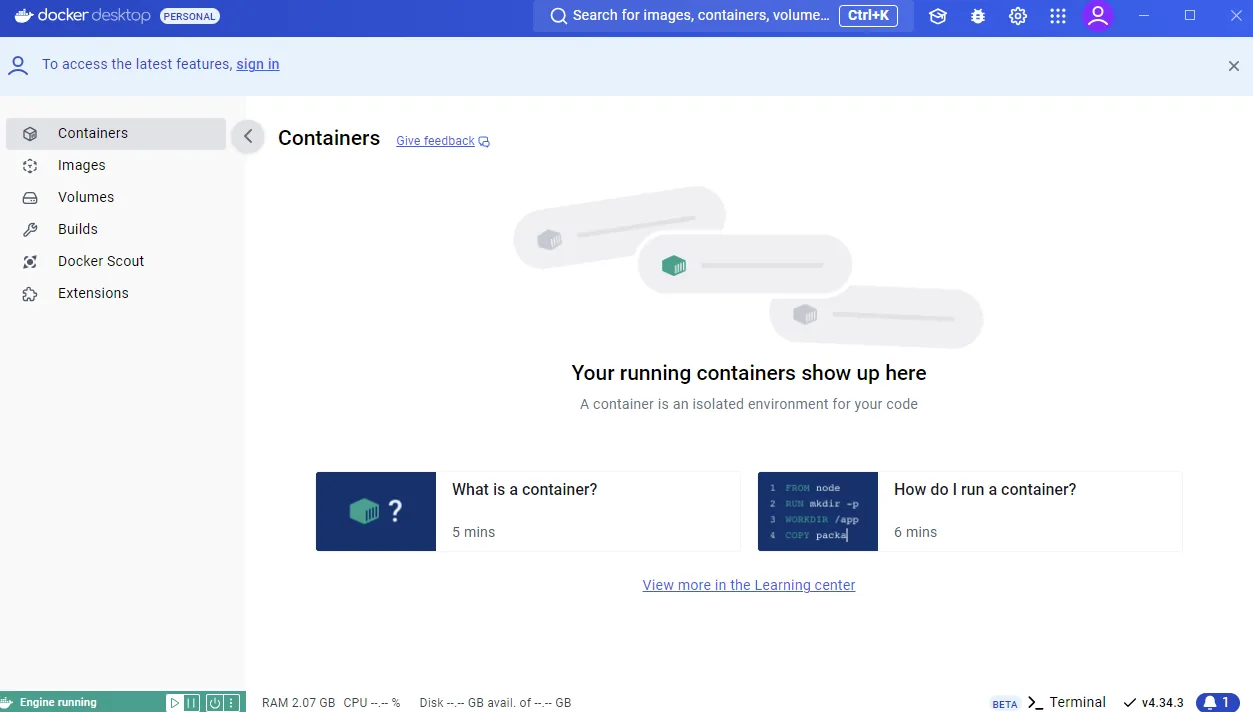
DOCKER DESKTOP READY FOR USE!
Troubleshooting and Best Practices
Common Issues and Fixes:
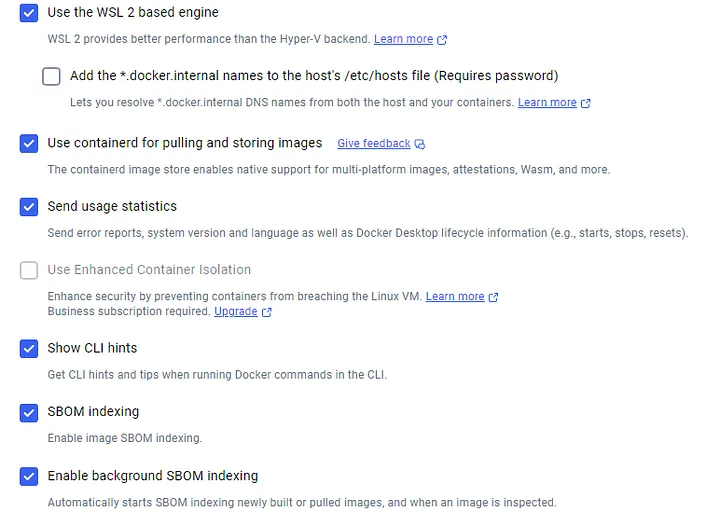
- Error when pulling containers: Disable "Add the *.docker.internal names to the host's /etc/hosts file (Requires password)" in settings.
- Performance issues: Use the WSL 2-based engine instead of Hyper-V backend.
Best Practices:
- Keep "Enable background SBOM indexing" enabled for optimized image inspections.
- Regularly update Docker Desktop for new features and security fixes.
- If persistent issues occur, check Docker Desktop logs or reinstall WSL 2 for compatibility resolution.
Bonus Tips
- Troubleshooting: If you encounter issues, check the Docker Desktop Logs in the application or reinstall WSL 2.
- Updates: Keep Docker Desktop updated for the latest features and fixes.
- Documentation: Visit the official Docker documentation for advanced use cases.


